# Looper, Handler in Android Part 3 - Handler
This article is the third in a series on Looper and Handler in Android. To fully understand the concepts discussed here, it's assumed that you have read or are already familiar with the concepts covered in [part1](https://blog.sajalrg.com/looper-handler-in-android-part-1-looper) and [part2](https://blog.sajalrg.com/looper-handler-in-android-part-2-handler). If not, I recommend visiting those articles first.
In this article, we will explore deeper into the `post()` method of `Handler`, with an example. By the end of this article, you would have a clear understanding of how the `post()` method executes your code in a different thread.
## How to use Handler
There are two main way `Handler` can be used in programming:
1. Adding or posting operation to be executed directly inside the thread from another thread. This flow is invoked by the `post()` method of `Handler`.
2. Sending a message about the operation which needs to be done inside the thread from another thread. This flow is invoked by a combination of the`sendMessage()` and `handleMessage()` methods of `Handler`.
## When to use `post()`
The `post()` method is particularly useful when you want to quickly run a block of code in another thread. For example, if you are running some computationally intensive operation in a background thread but want to post updates to the UI, then you can use a `Handler` attached to the `MainThread` for same.
```java
// Example code demonstrating the usage of post() method
public class ThreadWithLongRunningOperation extends Thread {
@Override
public void run() {
// Some long running operation
// Post intermediate progress to UI
Handler mainThreadHandler = new Handler(Looper.getMainLooper());
mainThreadHandler.post(new Runnable() {
@Override
public void run() {
// update UI
}
});
// Continue operation
// Update UI to show completion (here, runnable is posted using lambda)
mainThreadHandler.post(() -> {
// Update UI
});
}
}
```
## Inner working of `post()`
The signature of the post method is
```java
public final boolean post (Runnable r)
```
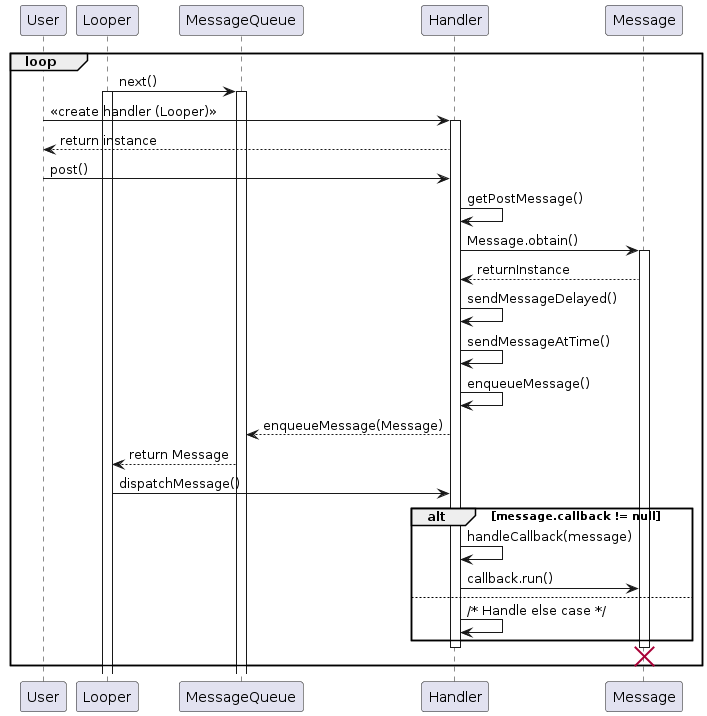
From part 2, we know that `Handler` is used to interact with the `Message` loop, and `Looper` only operates on the `Message` object. So, `post()` will first convert the `Runnable` to a `Message` and add it to the queue as shown below AOSP code snippet of `Handler.java`:
```java
// Method to convert Runnable to Message
private static Message getPostMessage(Runnable r) {
Message m = Message.obtain();
m.callback = r;
return m;
}
/**
* Causes the Runnable r to be added to the message queue.
* The runnable will be run on the thread to which this handler is
* attached.
*/
public final boolean post(@NonNull Runnable r) {
return sendMessageDelayed(getPostMessage(r), 0);
}
/**
* Enqueue a message into the message queue after all pending messages
* before (current time + delayMillis). You will receive it in
* {@link #handleMessage}, in the thread attached to this handler.
*/
public final boolean sendMessageDelayed(@NonNull Message msg, long delayMillis) {
if (delayMillis < 0) {
delayMillis = 0;
}
return sendMessageAtTime(msg, SystemClock.uptimeMillis() + delayMillis);
}
/**
* Enqueue a message into the message queue after all pending messages
* before the absolute time (in milliseconds) uptimeMillis.
* The time-base is {@link android.os.SystemClock#uptimeMillis}.
* Time spent in deep sleep will add an additional delay to execution.
* You will receive it in {@link #handleMessage}, in the thread attached
* to this handler.
*/
public boolean sendMessageAtTime(@NonNull Message msg, long uptimeMillis) {
MessageQueue queue = mQueue;
if (queue == null) {
RuntimeException e = new RuntimeException(
this + " sendMessageAtTime() called with no mQueue");
Log.w("Looper", e.getMessage(), e);
return false;
}
return enqueueMessage(queue, msg, uptimeMillis);
}
```
> Note: You can also use `Handler` to post block of code to execute on same or another thread with some delay using `postDelayed` method. If you want to execute the `Runnable` after some time instead of immediately you can replace `post` with `postDelayed`. Using `postDelayed` will call `sendMessageDelayed` method with the delay provided in the parameter instead of 0 as shown above.
Finally, the runnable is executed inside `dispatchMessage()` from the `loop()` method we saw in part2.
```java
public void dispatchMessage(@NonNull Message msg) {
if (msg.callback != null) {
handleCallback(msg);
} else {
// Handle other types of messages
}
}
private static void handleCallback(Message message) {
message.callback.run();
}
```
Adding these new pieces to our sequence diagram from part 2, results in below diagram
## Example
Now, let us look at an example where we will use the `post()` method. Here, we will `post()` the progress of some long running operation in the main thread which will update the UI. This is similar to how we used to update UI inside `AsyncTask`'s `onProgressUpdate`. As `AsyncTask` is now deprecated, this is a suitable alternative.
First, let us update the `ThreadWithLongRunningOperation` class as below
```java
public class ThreadWithLongRunningOperation extends Thread {
private final Consumer mOnThreadProgressConsumer;
public ThreadWithLongRunningOperation(Consumer onThreadProgressConsumer) {
this.mOnThreadProgressConsumer = onThreadProgressConsumer;
}
@Override
public void run() {
// Dummy sleep value to show work is happening
final long SLEEP_TIME_MS = 1000;
// Create a handler using the Main thread looper
Handler mainThreadHandler = new Handler(Looper.getMainLooper());
// Post to the main handler; this will run the Runnable code block in UI thread
mainThreadHandler.post(() -> mOnThreadProgressConsumer.accept(0));
// Some long-running operation; using sleep to simulate the same
trySleep(SLEEP_TIME_MS);
// Post intermediate progress to UI
mainThreadHandler.post(() -> mOnThreadProgressConsumer.accept(50));
// Continue operation; using sleep to simulate the same
trySleep(SLEEP_TIME_MS);
// Update UI to show completion
mainThreadHandler.post(() -> mOnThreadProgressConsumer.accept(100));
}
private void trySleep(long millis) {
try {
sleep(millis);
} catch (InterruptedException e) {
// do nothing
}
}
}
```
> Note: If you want to learn about the `Consumer` interface, I have posted an article [here](https://blog.sajalrg.com/consumer-interface-in-java).
In the `activity_main.xml` layout we will use the `TextView` to show the progress:
```xml
```
Finally, in our `MainActivity.java`, we will start the `Thread` and consume the update as follows:
```java
public class MainActivity extends AppCompatActivity {
TextView mCounterTextView;
@Override
protected void onCreate(@Nullable Bundle savedInstanceState) {
super.onCreate(savedInstanceState);
setContentView(R.layout.activity_main);
mCounterTextView = findViewById(R.id.counter_tv);
}
@Override
protected void onResume() {
super.onResume();
ThreadWithLongRunningOperation threadWithLongRunningOperation
= new ThreadWithLongRunningOperation(
(progress) -> mCounterTextView.setText(String.valueOf(progress))
);
threadWithLongRunningOperation.start();
}
}
```
### Example explanation
The provided code features a custom thread, `ThreadWithLongRunningOperation`, which executes a simulated long-running operation and communicates progress updates to the UI thread through a `Handler`. The `Handler`, associated with the main thread's `Looper`, posts UI updates using the `post()` method to be executed inside the `UIThread`.
In the MainActivity, an instance of this custom thread is created and started in the `onResume` method, with progress updates displayed in a `TextView`. The Handler ensures proper communication between the background thread and the UI thread, allowing smooth progress updates in response to the long-running operation.
## Conclusion
In this article, we examined how `Message` gets added to the `MessageQueue` inside the `Handler` class. We explored how `Runnable` objects are converted to `Message` and saw an example of using the `post()` method to update the UI thread from another background thread.
In the next article, we will continue our exploration of the `Handler` class and delve into the usage of the `sendMessage()` and `handleMessage()` methods.
Stay tuned for more insights into effective handler usage in Android development!